Make a clip
How to Make a Hit the Road Dude AI Video
To make a Hit the Road Dude AI video here, choose one person or animal photo, confirm the fixed reference, and submit a 10-credit task. The output is a 13-second vertical MP4 at 720p, with the selected source audio added after the visual clip is created.
In this guide
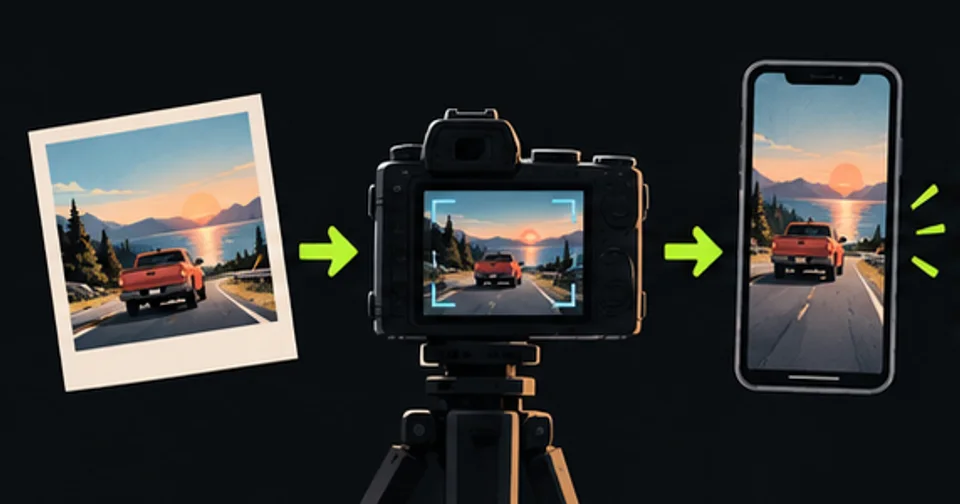
- ChoosePreview one photo on your device and watch the reference.
- ConfirmSign in, check the credit cost and confirm permission to use the photo.
- CreateSubmit once. Your task continues if you close the page.
- KeepReview the finished clip. It stays in your account until you delete it, and you can download a copy at any time.
1. Watch the selected reference
Play the reference on the homepage before choosing a photo. The current excerpt runs for 12.6 seconds and includes the dismissal and private-property response. The later Lock ’em up line is outside this cut. The output's 13-second duration does not add that later passage.
The photo supplies the replacement subject's appearance. The reference supplies the scene, camera and gestures. The tool is intended to change the visible main character, including hair and clothing for a person or species and markings for an animal. It is not a custom script editor.
Check whether that action fits your caption. If you only need an existing reaction GIF, or want to place the original performer over a new background, the formats guide describes those simpler options. A personalized Hit the Road Dude AI video is useful when the new subject is part of the joke.
2. Add a clear person or pet photo
Use one JPG, PNG or WebP. Large originals are resized and compressed in your browser before upload. Show the subject's head and upper body clearly. Keep useful details such as hair, ears, a collar or the top of the outfit inside the crop. The image must be at least 256 pixels in both dimensions; a larger, sharp photo gives you more visible detail to inspect.
Selecting a photo creates a local preview. It does not upload the image, start a task or spend credits. You can remove the selection and try another image. The browser prepares the photo for transfer when you submit, so a large original does not need to travel unchanged.
For an animal, upload the animal directly. There is no requirement to turn it into a human portrait first. Choose a frame with one recognizable pet and avoid collages. The pet guide explains which fur, muzzle and paw details to inspect in a finished replacement.
Confirm that you can use the photo and have permission from anyone shown. The checkbox records your confirmation; it does not independently verify consent. If the image belongs to someone else, settle that question before submitting it.
3. Check the cost before creating
A Hit the Road Dude AI video uses 10 credits. The one-time packs are Starter, with 20 credits for USD 4.90; Plus, with 50 credits for USD 9.90; and Pro, with 120 credits for USD 19.90. Any applicable tax appears at checkout. There is no subscription or automatic renewal.
Purchased credits never expire. Buying credits does not create a video automatically. Choose the pack based on the number of attempts you intend to make, remembering that a completed AI output can still need your review for appearance or motion mistakes.
When a generation task is accepted, 10 credits are reserved. They are charged after the complete video has been saved. A confirmed failure releases the reservation. If the submission result is unknown, the task remains under review instead of immediately submitting again or claiming a refund.
The page will show when purchases or video creation are unavailable. Do not interpret a disabled control as a free generation offer. Previewing the source and choosing a local photo are free; the AI generation itself is a paid operation.
4. Submit once and keep the task
Sign in, confirm your photo and permission, then use the create control. Uploading and task acceptance can take different amounts of time. Wait for the task status before trying to start another video.
If a response cannot be confirmed, the page offers a retry for the same request. That retry is intended to check the original submission without creating a duplicate. Avoid opening multiple tabs and repeatedly starting new attempts; one active task per account is supported.
Once the task is accepted, processing continues independently of the browser. You can close the page and return to My videos. Refreshing the page does not accelerate rendering, and the tool does not promise a fixed completion time.
A status that says the result is being checked means the system has not established a safe final outcome. Your reserved credits are not the same as a completed charge. If that state persists, contact support with the task identifier from your account rather than sending your original photo or payment details in a public message.
5. Review the complete clip
When the result is ready, play it from the beginning. Check the face or muzzle during movement, then inspect hair, clothing, ears and hands or paws. A recognizable still frame does not prove that the replacement stays consistent through the whole action.
Listen to the audio too. The tool adds the original 12.6-second source sound to the visual result and leaves a short silent tail in the 13-second file. It does not generate a new voice. Exact mouth synchronization is not guaranteed.
Finished videos are saved privately and permanently until you delete them. Download the MP4 whenever you want a local copy. Uploaded photos and derived files expire after seven days. Delete a saved video from My videos, or delete your account to request removal of all your media.
If you add a caption in another editor, review the exported version as well as the in-browser result. Keep the face clear, make the text readable on a phone and identify a realistic AI edit as an edit where context could otherwise be misleading.
Resolve the problem at the stage where it appears
A file that will not open has not reached generation yet. Check its format and size, or export a fresh JPG from your photo app. Renaming a HEIC file with a .jpg extension does not change its encoding. If the preview is blurry, choose a better source before paying for a task.
An expired upload needs a new photo selection. An active-task message means you should check My videos rather than create another request. If a video is saved but you cannot retrieve it, confirm that you are signed into the same account and have not deleted it. Saved videos do not expire automatically; contact support with the task reference if the problem continues.
For a visible generation mistake, identify the specific issue before deciding on another attempt. A cropped hairstyle calls for a better photo; the wrong dialogue calls for a different reference workflow. More retries cannot add a line that the fixed template does not contain.
| What you see | Next step |
|---|---|
| Photo format or size error | Export JPG, PNG or WebP; large files are prepared automatically |
| Not enough available credits | Check your balance and the 10-credit cost |
| A task is already processing | Open My videos and follow that task |
| Submission needs review | Keep the task; contact support if it persists |
| Finished file has expired | Use the copy you downloaded before its expiry |
Prompts and free editing have different roles
A prompt is a description of the desired transformation. In a flexible reference editor, it can specify which subject changes and which scene elements remain. It does not replace the need for a suitable photo and action reference. This site's fixed template supplies that direction for you.
Free captioning or trimming tools can help finish an existing clip, but that is different from creating a new character performance. Compare the operation you need, not just whether a page uses the word free. This site does not advertise a free AI generation tier.
For another scene or a different passage, read the Higgsfield workflow guide and check the capabilities of the service you choose. For this exact Hit the Road Dude AI video, return to the homepage with one clear subject photo and preview the reference before you submit.