Sounds & templates
Lock Em Up GIF and Green-Screen Templates
For a quick reaction, start with an existing Lock Em Up GIF. For a video with the spoken line or a new background, use a video template. Changing the person in the scene is a separate task; a GIF download or green-screen overlay does not perform that replacement.
In this guide
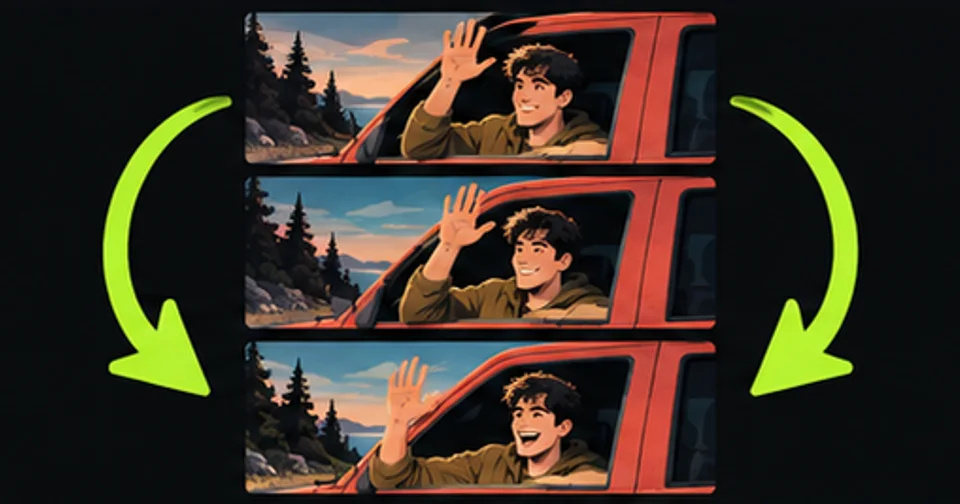
- A silent chat reaction
- Use a GIF with readable text and a recognizable expression.
- The spoken delivery
- Use a video file or video link that includes audio.
- The speaker over your scene
- Use a suitable green-screen clip or an existing template.
- Your own character
- Use a separate reference-editing workflow and inspect the whole result.
Three public resources to inspect
The Tenor page titled Lock Em Up Meme is a direct starting point for the punishment reaction. Its page provides sharing and link-copy options. Open the item itself and play the animation before using it; a search thumbnail can show the right character while hiding the timing of the reaction.
Tenor also has a separate Hit The Road Dude Meme item. That is useful when your caption sends something away rather than delivering a mock verdict. Keep the two bookmarked separately if you use both reactions, because their visual similarity can make them easy to confuse in a crowded media folder.
The linked CapCut template is titled Lock ’em up! and is credited to CapCut Junction. Its public listing specifies one required clip and a 9:16 aspect ratio. Those details describe the template input and layout. They do not establish AI identity replacement, a free export entitlement or a license for every use.
All three source links are collected below. Availability and app behavior can change, so inspect the current item page before building an edit around it. We link to these resources rather than presenting their files as a new collection created by this website.
| Resource | Use it for | Check before sharing |
|---|---|---|
| Tenor: Lock Em Up Meme | A short punishment-reaction GIF | Caption readability and loop timing |
| Tenor: Hit The Road Dude Meme | The related dismissal reaction | That it contains the moment you wanted |
| CapCut: Lock ’em up! | A vertical video-template edit | The current preview, input slot and export conditions |
Choose GIF or MP4 before editing
GIF is useful when a chat or page expects a looping animation. It has no audio track. If the voice is the reason the joke works, a silent Lock Em Up GIF needs clear on-screen words or a viewer who already knows the line. Otherwise, share a video or a link that preserves the sound.
MP4 can contain both the moving image and audio. It is usually the more suitable working file for a video timeline, subtitles and a final social post. A platform may turn an uploaded video into a silent preview, however, so check the actual posted result rather than assuming every viewer will hear it immediately.
A green background describes the picture, not the file format. A green-screen clip can be an MP4. The background is removed during compositing so the character can appear over your own footage. It is different from a transparent file, and simply placing it on a timeline will not necessarily remove the green.
This website currently produces vertical MP4 videos. It does not offer a GIF export button, a GIF converter or a downloadable Lock ’em up reaction pack. If your only goal is a chat reply, the existing resource may be the shortest route.
| Format or material | Sound | Typical task |
|---|---|---|
| GIF | No audio track | A compact looping reaction |
| MP4 | Can include audio | A complete video edit or social upload |
| Green-screen video | Depends on the source file | Place a cutout character over another scene |
| Link to a source page | Depends on the embedded player | Share the original item with attribution |
Use a video template deliberately
For the CapCut resource, begin with the public preview and the template's stated input requirement. Choose the one clip that supplies your setup. It might show a harmless gaming mistake, an empty snack container or another scene you recorded yourself. The template should make that situation easier to read.
When the template opens in the available CapCut interface, inspect which part of your media appears. A one-clip template may select a particular duration or crop. Move the chosen segment if the useful action is missing, and check whether the source reaction appears before the viewer understands the setup.
Review any text layers and audio tracks before exporting. Replace placeholder captions with your own words. Listen for duplicate audio, unexpected music or a muted reaction. Export conditions and paid elements depend on the current template and account; confirm those in the app rather than relying on an old screenshot.
Keep a copy of the finished export and the source link. If you later need to change a caption, retaining the editable project is more useful than repeatedly downloading and recompressing the published clip.
If you are compositing a green-screen version
Place the reaction above your background footage in an editor that supports chroma key or a comparable background-removal control. Select the green background, then adjust the removal while watching the character's outline. The aim is to remove the background without erasing the shirt, hair or other useful detail.
Inspect the edge over both a dark and a light part of your scene. A green fringe that disappears against grass can become obvious against a white wall. Increasing the removal too aggressively can also produce holes in the subject, so balance the edge instead of trying to solve every problem with one stronger setting.
Match the size and position to the joke. A small reaction in a corner can leave the setup visible. A larger figure may work when the reaction itself is the payoff. Keep the face and any subtitle clear of buttons or caption areas in the final publishing layout.
This operation keeps the source performer. If you want your own face, clothing or an animal in that role, a green-screen workflow alone will not do it. Decide whether the replacement is necessary before adding another production step.
Check the file the recipient will see
Preview your Lock Em Up GIF or video in the destination app before relying on it. Confirm that an animation still moves, a video still has the intended sound, and captions remain large enough to read. The preview inside an editing application is not always the same as the posted presentation.
A useful final test is to ask whether someone can understand the setup in one viewing. If the answer depends on tiny text, a missing audio track or a moment outside the chosen cut, fix that specific issue. Extra filters will not supply missing context.
For a personalized dismissal video, the homepage uses the Hit the Road Dude excerpt and one photo. That template has a different endpoint from the Lock ’em up reaction. The sound guide explains the selected dialogue; the production guide explains the fixed-template upload and download flow.